How to add JSON-LD SEO to a WordPress post
You are reading the guide for configuring the content (the post). Unlike the WordPress page, where you define whether the URL is a Service or a CollectionPage, here the plugin already knows you are writing an Article and prepares everything automatically.
The result? Correct markup, ontologically coherent, that saves Crawl Budget and lets Google and AI bots (such as ChatGPT or Gemini) understand exactly what you are talking about.
What the SEO Semantic plugin does on a post
Forget plugins that inject code at random. SEO Semantic builds a graph and prevents errors at the root through an interface that adapts to the content type.
#article entity preconfigured
When you open a post, the plugin knows it is an Article. It automatically extracts the author, the publication date and the body text, linking them to the web page (WebPage).
Reviews disabled
Google accepts reviews (Review) only on specific types such as Product or LocalBusiness. On a post, the review box does not appear at all. This prevents fatal errors reported by the official validator.
Prevention of wrong types
You cannot declare that a post is a Product or a Service. The option does not exist, so the error is impossible. The plugin protects you from “Ontological Chimeras”.
The plugin panel in action
This is what the interface looks like when you work on a post.
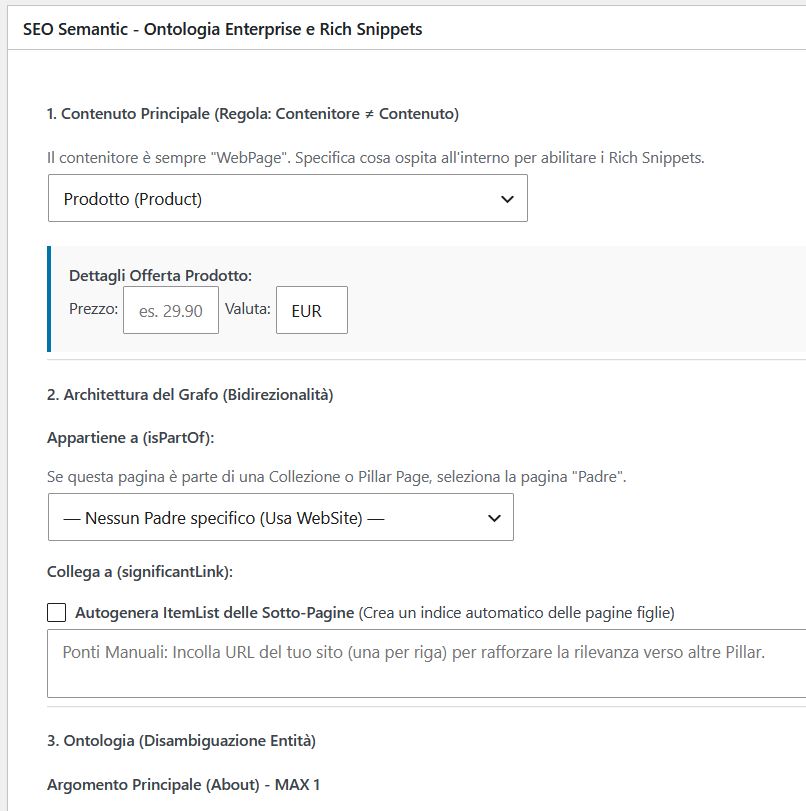
The basic post configuration
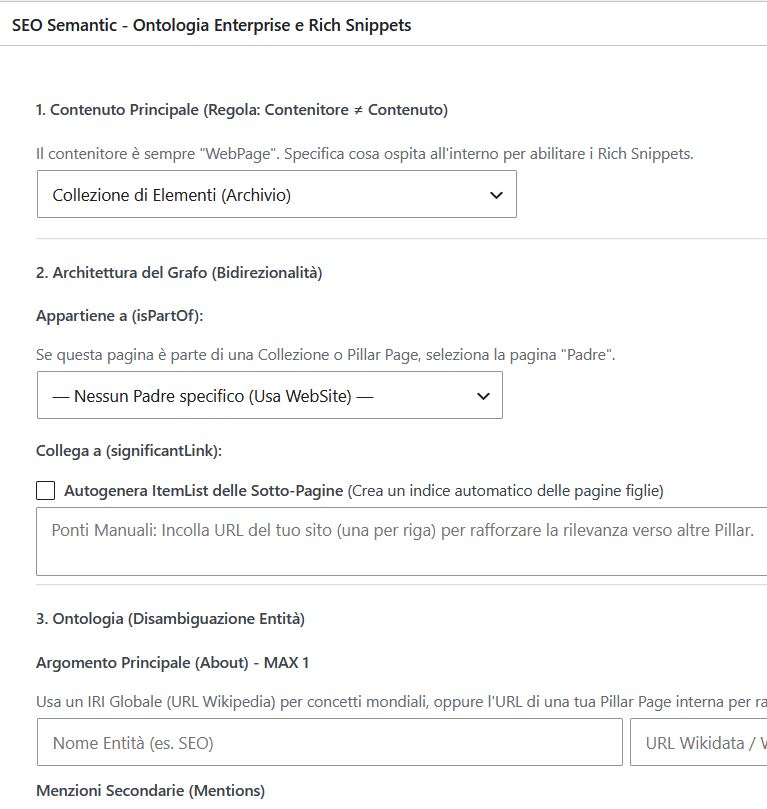
Choosing the Collection Page (Pages only)
The Proof: One Single Graph, Zero Errors
The plugin does not just inject a block of code. It builds a scalable graph. Here is the comparison between a basic post (Case A) and one enriched with FAQs (Case B).
Case A: Basic Structure
The essence of the plugin: the WebPage (container) declares the Article as its mainEntity. Zero orphan nodes, everything linked to the site ID.
// Without FAQ - minimal graph
{
  "@context": "https://schema.org",
  "@graph": [{
    "@type": "WebPage",
    "@id": ".../#webpage",
    "mainEntity": { "@id": ".../#article" }
  }, {
    "@type": "Article",
    "@id": ".../#article"
  }]
}
Schema Validator: 0 Errors, 0 Warnings.
Rich Results: 1 valid item (Articles).
Case B: Expanded Structure (+ FAQ)
By adding FAQs, the graph does not break: it expands. The WebPage acts as a bridge and the FAQPage attaches coherently, ready to be read by AI bots.
// With FAQ - expanded graph
{
  "@context": "https://schema.org",
  "@graph": [{
    "@type": "WebPage",
    "@id": ".../#webpage",
    "mainEntity": { "@id": ".../#article" }
  }, {
    "@type": "Article",
    "@id": ".../#article"
  }, {
    "@type": "FAQPage",
    "@id": ".../#faq",
    "isPartOf": { "@id": ".../#webpage" }
  }]
}
Schema Validator: 0 Errors, 0 Warnings (perfect merge).
Rich Results: 1 valid item (Articles).
Why a true Knowledge Graph beats traditional plugins
Zero Fragmentation
Commercial plugins (Yoast, RankMath) inject “islands” of data. Our plugin builds an ecosystem in which the post is linked to the author, which is linked to the organization, which is linked to the website. Everything lives in a single @graph.
Crawl Budget & AI
A coherent graph does not waste Google’s Crawl Budget. Moreover, AI bots (such as ChatGPT) do not read text like humans — they read the graph. The cleaner the graph, the more likely your post is to be cited as an authoritative source.
Want to test your site? Use the Schema.org validator or the Rich Results Test. For a deeper analysis, read the guide to the 19 rules of the Schema.org Audit.
Looking for the guide for Pages?
This post explains how to handle the content (the Article entity). If instead you need to tell WordPress that a given URL is a Service, a Product or a Collection of pages (the container), the right guide is the other one.